

Business Entity Onboarding
Introduction - New Onboarding User Pro
This documentation describes the onboarding process for Legal Entities, from the initialization of the onboarding journey to the final onboarding decision and activation of the business relationship.
The onboarding process relies on Ondorse for the collection of company information and supporting documents, while Xpollens manages the Business Entity lifecycle, KYB processing and the associated partner notifications.
The purpose of this documentation is to describe the main steps required for a Partner to integrate this onboarding flow:
- creation of an Ondorse onboarding portal link;
- completion and submission of the Business Entity onboarding journey;
- creation of the Business Entity in Xpollens;
- KYB analysis and validation;
- management of additional information or document requests;
- creation and management of Contributors associated with the Business Entity;
- collection of FATCA/CRS information;
- handling of the relevant callbacks sent to the Partner.
Onboarding flow overview
The onboarding process mainly involves three actors:
- The Partner, who initiates the onboarding process and integrates it into its own customer journey;
- Ondorse, which provides the onboarding portal used to collect the required company information and supporting documents;
- Xpollens, which creates and manages the Business Entity, processes the KYB file and sends lifecycle callbacks to the Partner.
At a high level, a new onboarding follows the flow below:
flowchart TD
    A["Partner requests<br/>portal link"]
    B["Ondorse onboarding<br/>journey initialized"]
    C["Customer completes<br/>the Ondorse journey"]
    D["Customer submits<br/>the onboarding file"]
    E["Business Entity created<br/>Initialized"]
    F["KYB demand created"]
    G["Business Entity<br/>InProgress"]
    H["Xpollens review"]
    I{"Decision"}
    J["Business Entity<br/>Active"]
    K["Account automatically<br/>created"]
    M["Account<br/>Activated"]
    N["Additional information<br/>or documents required"]
    L["Business Entity<br/>AwaitingInactivation / Inactive"]

    A --> B
    B --> C
    C --> D
    D --> E
    E --> F
    F --> G
    G --> H
    H --> I

    I -- "Accepted" --> J
    J --> K
    K --> M
    I -- "Additional information required" --> N
    N --> G
    I -- "Rejected" --> L
Main use cases
● New onboarding
The Partner initializes a new Legal Entity onboarding by requesting an Ondorse portal link.
The customer uses the portal to provide the requested company information, related persons and supporting documents.
The Business Entity is created in Xpollens only when the onboarding journey is submitted through Ondorse.
● Resume an unfinished onboarding
If the customer has started but not submitted the onboarding journey, the Partner can request the portal again using the same identifier.
As long as the current portal link is still valid, the same portal URL is returned.
If the link has expired, a new portal link is generated.
● Additional information or documents
After the onboarding journey has been submitted, the Business Entity remains under review until an onboarding decision is reached.
During this period, the Business Entity can remain InProgress.
No action is required from the customer unless additional information or supporting documents are specifically requested.
When a correction is required, the onboarding portal is reopened and the Partner receives a new PortalLinkCreatedOrUpdated callback. The Partner must then make the new portal link available to the customer, who is expected to complete the requested correction before the onboarding review can continue.
Documentation structure
- Create an Ondorse onboarding portal link
- Complete the onboarding journey and create the Business Entity
- KYB review, decision and reopening
- Account creation
- Contributor creation and onboarding
- Relevant callbacks
- Sandbox testing and mocks
1. Create an Ondorse Onboarding Portal Link
The first step of a Legal Entity onboarding is to create an Ondorse onboarding portal link.
The portal allows the company's representative to provide the information and supporting documents required for the KYB process, including:
- company information;
- legal representatives;
- beneficial owners;
- mandated persons, when applicable;
- supporting documents required during onboarding.
The Partner creates the portal link through the Xpollens API and then redirects or sends the customer to the returned URL.
At this stage, the onboarding journey is initialized, but the Business Entity is not yet available through the Business Entity GET APIs.
The Business Entity is created only after the customer submits the onboarding journey through Ondorse.
Create the portal link
Use the following endpoint through the Xpollens gateway:
POST /api/v4.0/portal-linkRequest
The request must contain an appUserId.
For a Legal Entity onboarding, this identifier will later become the businessEntityId of the Business Entity created in Xpollens.
{
  "appUserId": "company_123456",
  "redirectUrl": "https://partner.example.com/onboarding-completed"
}| Field | Required | Description |
|---|---|---|
appUserId | Yes | Unique identifier assigned by the Partner to the future Business Entity |
redirectUrl | No | URL where the customer is redirected after completing the onboarding journey |
company | No | Company information that can be provided when already known |
appUserId format
appUserId formatThe identifier must:
- contain between 6 and 30 characters;
- comply with the following regular expression:
^[a-zA-Z0-9-_.!§)(]*$The same value is used as the businessEntityId once the Business Entity is created.
Providing known company information
If company information is already known, it can be provided when creating the portal:
{
  "appUserId": "company_123456",
  "redirectUrl": "https://partner.example.com/onboarding-completed",
  "company": {
    "registrationCountry": "FR",
    "registrationNumber": "123456789",
    "companyName": "Example Company"
  }
}
When company is provided, the following fields are required:
| Field | Description |
|---|---|
registrationCountry | Country where the company is registered |
registrationNumber | Official registration number, such as the SIREN for a French company |
companyName | Registered company name |
Providing the company object changes how the customer enters the onboarding journey:
- with
company— the customer arrives on a pre-filled portal containing the known company information; - without
company— the customer starts from the company search step and identifies the company directly in the portal.
Company pre-filling is available for registration countries enabled for the Partner.
Response
When the portal is successfully created, Xpollens returns:
HTTP/1.1 201 Createdwith the portal URL:
{
  "location": "https://collect.ondorse.co/portals/..."
}
The Partner can then redirect the customer to this URL or make it available through its own customer journey.
Idempotency and portal lifecycle
The portal-link endpoint is idempotent for a given appUserId.
If the endpoint is called again while the current portal link is still valid, the same portal URL is returned.
A portal link is valid for 14 days.
If the onboarding journey has not been submitted before the link expires, the Partner must request the portal again using the same appUserId. A new portal link is then generated.
flowchart TD
    A["POST /api/v4.0/portal-link"]
    B{"Existing active portal?"}
    C["Return the same<br/>portal URL"]
    D{"Previous portal expired?"}
    E["Create a new<br/>portal URL"]
    F["Return portal URL"]

    A --> B
    B -- "Yes" --> C
    B -- "No" --> D
    D -- "Yes" --> E
    D -- "No previous portal" --> E
    E --> F
When portal creation is refused
A new portal cannot be created with an identifier already associated with an existing finalized Business Entity.
This includes, for example:
- a Business Entity that has already been successfully onboarded;
- a Business Entity whose onboarding has been explicitly rejected.
In these situations, the API refuses creation of a new onboarding portal for the same businessEntityId / appUserId.
A closed portal may return:
HTTP/1.1 400 Bad Request{
"message": "Portal is now closed for thirdParty appUserId::90000001."
}Portal callback
The Partner may receive a PortalLinkCreatedOrUpdated callback when a portal link is created, updated or reopened.
Example:
{
  "type": "PortalLinkCreatedOrUpdated",
  "appUserId": "USR12345",
  "portalLink": "https://collect.ondorse.co/portals/..."
}
Portal initialization flow
sequenceDiagram
    participant Partner
    participant Xpollens
    participant Customer
    participant Ondorse

    Partner->>Xpollens: POST /api/v4.0/portal-link
    Xpollens-->>Partner: 201 Created + portal URL

    Note over Xpollens: Business Entity not yet available through GET APIs

    Partner->>Customer: Redirect or provide portal link
    Customer->>Ondorse: Open onboarding portal
2. Complete the Onboarding Journey and Create the Business Entity
The customer completes the Business Entity onboarding journey directly in the Ondorse portal.
The visible portal journey is organized around four main sections:
- Company information
- Related persons
- Documents
- Confirmation
Identity verification is part of the onboarding journey. The person completing the onboarding must complete the required identity-verification step. Identity evidence may also be required for other related persons associated with the company, depending on their role and the applicable onboarding controls.
The Business Entity does not become available in Xpollens until the customer submits the completed onboarding journey.
Onboarding journey overview
flowchart TD
    A["1. Company<br/>information"]
    B["2. Related persons<br/>and roles"]
    C["3. Supporting<br/>documents"]
    D["Identity verification<br/>when required"]
    E["4. Confirmation<br/>and Terms acceptance"]
    F["Submit onboarding"]
    G["Business Entity created"]
    H["KYB review"]

    A --> B
    B --> C
    C --> D
    D --> E
    E --> F
    F --> G
    G --> H
Company information
The customer searches for the company using its name or registration number.
When information is available from official sources, the portal can pre-fill the corresponding company data.
The customer reviews and, when required, completes information such as:
- registration number;
- company name;
- legal form;
- registration date;
- VAT number;
- registered address;
- business information;
- commercial address, when applicable.
The exact information requested may depend on the company profile and the data already available.
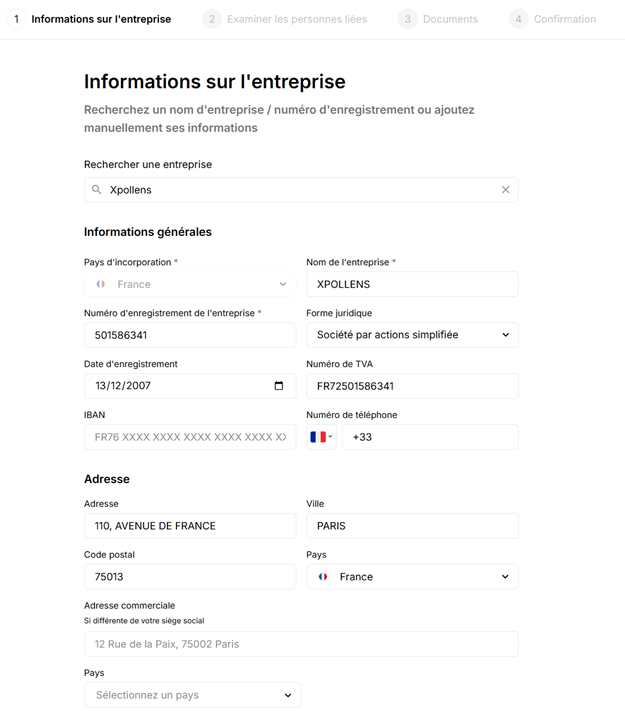
Example of the Ondorse onboarding portal — Company information.
The exact fields displayed may vary depending on the company profile and available information.
Related persons
The onboarding journey identifies the persons associated with the company, including:
- Legal Representatives;
- Beneficial Owners;
- Mandated persons, when applicable.
When related persons can be identified from available company information, the customer can select the person corresponding to them.
If the person completing the journey is not already listed, they can provide their personal information and specify their role.
A Mandated person may be required to provide evidence demonstrating their authority to act on behalf of the company.
Beneficial Owners are identified according to the applicable ownership and control criteria.
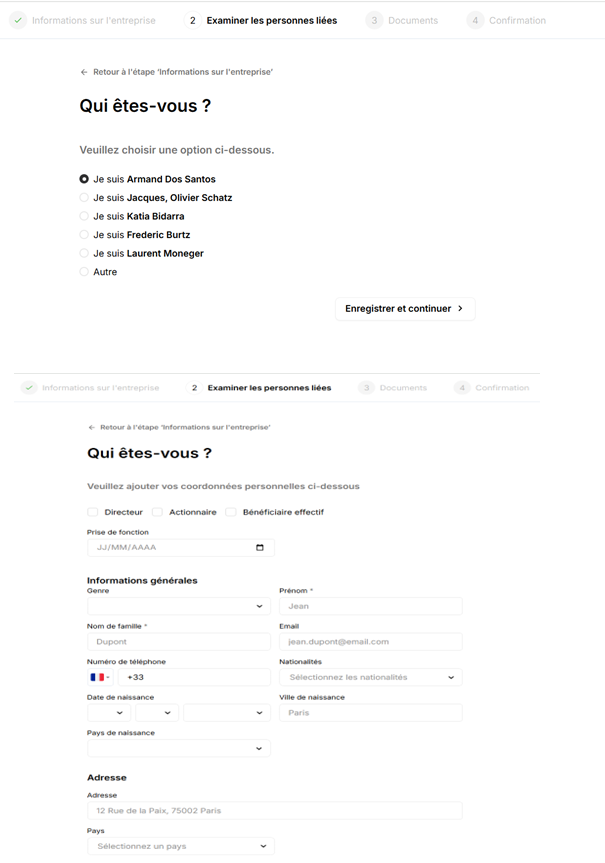
Example of the Ondorse onboarding portal — Related persons.
The exact list of persons and roles displayed depends on the company information available during onboarding.
Supporting documents
Depending on the company and the information available from official sources, supporting documents may be retrieved automatically or requested from the customer.
The customer only needs to provide a document when it cannot be retrieved automatically or when additional evidence is required.
Typical documents may include:
| Document | Purpose |
|---|---|
| Proof of registration / legal existence | Confirm that the company legally exists |
| Company statutes | Confirm the legal form, representatives and governance |
| Mandate / delegation of authority | Confirm that a Mandated person can act on behalf of the company |
| Beneficial Owner register / declaration | Identify and verify Beneficial Owners |
| Evidence of business activity | Confirm the company's actual business activity |
| Identity documents | Identify relevant natural persons |
The exact list of documents depends on the company profile and the outcome of the onboarding checks.
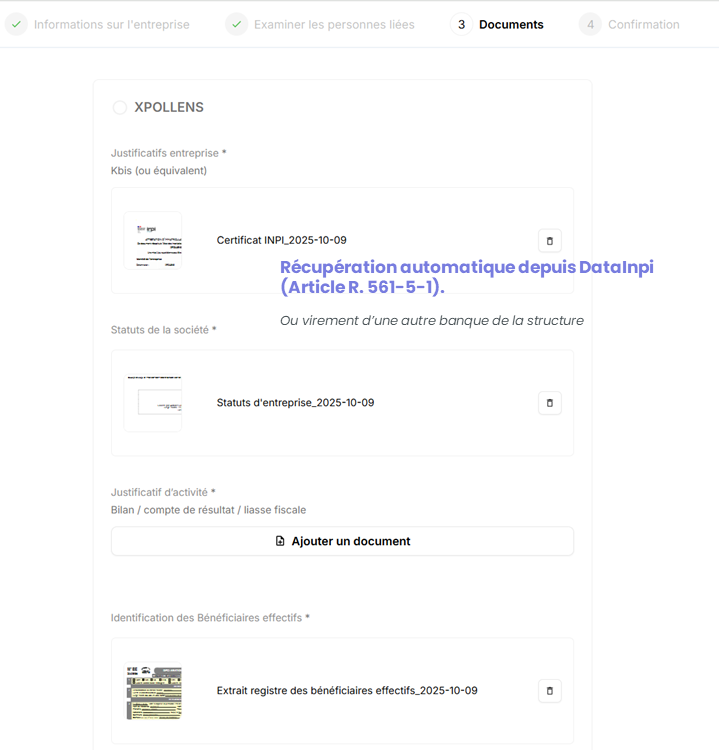
Example of the Ondorse onboarding portal — Supporting documents.
Some documents may be retrieved automatically from official sources, while others may need to be provided by the customer.
Identity verification
The person completing the onboarding journey must complete the required identity-verification step.
For other persons associated with the company, identity evidence may also be required depending on their role and the applicable onboarding controls. This notably concerns:
- the Legal Representative;
- a Mandated person, when applicable;
- a Beneficial Owner, when required by the applicable ownership or control criteria.
For a Mandated person, additional evidence may also be required to demonstrate the authority to act on behalf of the company.
The purpose of these controls is to confirm the identity of the relevant persons and, where applicable, their authority or relationship with the company.
If a required identity verification fails or the provided identity information is inconsistent, the onboarding cannot be successfully validated until the issue is resolved.
KYB checks performed during onboarding
The information and documents collected during the journey are used to perform the required KYB checks.
These may include:
- verification of the company's legal existence and business activity;
- consistency checks on company information and registered addresses;
- identification and verification of Legal Representatives;
- verification of mandates and representation rights;
- identification of Beneficial Owners;
- AML/CFT, sanctions and risk screening.
These checks are handled as part of the Ondorse/Xpollens onboarding process. From the Partner's point of view, the underlying screening and review steps are transparent: the Partner receives the resulting onboarding and lifecycle statuses rather than having to orchestrate the individual controls.
Terms and conditions
Before the onboarding journey is submitted, the customer accepts the applicable Xpollens Terms and Conditions.
Submission
Once all required information, documents and verification steps have been completed, the customer submits the onboarding journey in Ondorse.
Submission is the point at which the Business Entity is created and becomes available in Xpollens.
sequenceDiagram
    participant Customer
    participant Ondorse
    participant Xpollens
    participant Partner

    Customer->>Ondorse: Complete company information
    Customer->>Ondorse: Identify related persons
    Customer->>Ondorse: Provide required documents
    Customer->>Ondorse: Complete identity verification
    Customer->>Ondorse: Accept Terms and Conditions
    Customer->>Ondorse: Submit onboarding journey

    Ondorse->>Xpollens: Submit onboarding file
    Xpollens->>Xpollens: Create Business Entity
    Note over Xpollens: relationState = Initialized

    Xpollens-->>Partner: BusinessEntityCreatedOrUpdated

    Xpollens->>Xpollens: Create KYB demand
    Xpollens->>Xpollens: Move Business Entity to InProgress

    Xpollens-->>Partner: KYB demand callback
    Xpollens-->>Partner: BusinessEntityCreatedOrUpdated
Business Entity identifier
The appUserId used when the portal was initialized becomes the businessEntityId of the created Business Entity.
For example:
appUserId = company_123456
businessEntityId = company_123456
Even when an API parameter is named appUserId, the Partner should always use the parameter name defined by that API contract.
End-to-end correlation
The appUserId provided when the portal is created becomes the businessEntityId and should be used to correlate:
- the portal journey;
- portal-link callbacks;
- KYB callbacks;
- Business Entity lifecycle callbacks;
- Business Entity GET responses.
This identifier is the main correlation key for the onboarding lifecycle.
Initial lifecycle
Immediately after submission, the Business Entity is created with:
InitializedA KYB demand is then created and the Business Entity transitions to:
InProgressThe Business Entity can remain InProgress while Xpollens reviews the information, supporting documents and associated checks.
During this review period, no action is required from the customer unless additional information or documents are specifically requested.
InProgress does not necessarily mean that customer action is required. It may simply indicate that the onboarding file is awaiting review or a final decision.
Business Entity statuses
The current Business Entity model exposes the following relation states:
| Status | Meaning |
|---|---|
Initialized | Business Entity has just been created following onboarding submission |
InProgress | Onboarding / KYB review is still ongoing |
Active | The business relationship has been accepted and activated |
AwaitingInactivation | Transitional state while the Business Entity is being inactivated, including the time required to close its account(s) |
Inactive | The Business Entity is no longer active |
Additional reasons may be provided with the relation state to explain why the state changed.
Business Entity API availability
Before the onboarding journey is submitted:
Business Entity GET APIs are not available for this onboarding.After the journey is submitted and the Business Entity is created, the Partner can retrieve it using the Business Entity API.
Business Entity lifecycle callback
The callback used to follow the Business Entity lifecycle is:
BusinessEntityCreatedOrUpdatedIt is sent when a Business Entity is created and when it is updated.
Its payload includes, among other information:
businessEntityId;businessEntityType;relationState;- company information;
- related persons;
- onboarding and lifecycle dates;
- data correction information.
dataCorrectionLogs may contain normalization or correction information when data provided during onboarding has been adjusted.
Example:
{
  "dataCorrectionLogs": [
    {
      "propertyName": "company.addresses[0].city",
      "originalValue": "St denis",
      "newValue": "Saint Denis",
      "reason": "Normalization"
    }
  ]
}
Example structure:
{
  "type": "BusinessEntityCreatedOrUpdated",
  "businessEntityId": "company_123456",
  "businessEntityType": "LegalEntity",
  "relationState": {
    "status": "InProgress",
    "reasons": [],
    "history": [
      {
        "status": "Initialized",
        "reasons": [],
        "timestamp": "2026-02-15T19:31:20"
      },
      {
        "status": "InProgress",
        "reasons": [],
        "timestamp": "2026-02-15T19:32:10"
      }
    ]
  }
}
KYB demand callback (#46)
The Partner receives KYB demand updates through:
#46 - KybDemandChangedThis callback provides information about the KYB file associated with the Business Entity.
It can include:
- the Business Entity identifier;
- the current KYB demand status;
expectedDiligences;receivedDiligences;- Contributor KYC information when available;
- a
commentwhen additional context must be provided to the Partner.
Example structure:
{
  "type": "46",
  "status": "Incomplete",
  "businessEntityId": "company_123456",
  "comment": "Additional information is required.",
  "receivedDiligences": [],
  "expectedDiligences": [],
  "contributors": []
}
The detailed KYB status lifecycle and the distinction between KYB demand status and Business Entity relationState are described in the next section.
3. KYB Review, Decision and Reopening
Once the onboarding journey has been submitted, the Business Entity enters the KYB review phase.
The Business Entity can remain InProgress while Xpollens reviews the information, supporting documents and associated controls.
From the customer's point of view, no action is required during this period unless additional information, a new document or a new verification step is specifically requested.
KYB review
The review may cover:
- company information and legal existence;
- supporting documents;
- Legal Representatives and representation rights;
- Beneficial Owners;
- identity verification results;
- AML/CFT, sanctions and risk controls;
- FATCA/CRS information when applicable.
Some controls may be automated, while others may require an additional review by Xpollens.
flowchart TD
    A["Business Entity<br/>InProgress"]
    B["Xpollens KYB review"]
    C{"Additional information<br/>required?"}
    D["No customer action<br/>Wait for decision"]
    E["Portal reopened"]
    F["Customer provides<br/>requested information"]
    G["Updated journey submitted"]
    H{"Final decision"}
    I["Business Entity<br/>Active"]
    J["Business Entity<br/>AwaitingInactivation"]
    K["Business Entity<br/>Inactive"]

    A --> B
    B --> C
    C -- "No" --> D
    D --> H
    C -- "Yes" --> E
    E --> F
    F --> G
    G --> A
    H -- "Accepted" --> I
    H -- "Rejected" --> J
    J --> K
KYB demand lifecycle
The Partner follows the KYB demand through the #46 - KYB demand callback.
The callback uses the statuses defined by its API contract, including:
Initialized
FullyReceived
Pending
Incomplete
Complete
BeingReceived is part of the KYB lifecycle but does not trigger this callback.
The KYB demand status and the Business Entity relation state represent two different aspects of the onboarding process:
- the KYB demand status indicates the progress of the KYB file and its diligences;
- the Business Entity relation state indicates the lifecycle of the business relationship.
The final business relationship decision must therefore be followed through BusinessEntityCreatedOrUpdated.
Accepted onboarding
When the onboarding is accepted, the Business Entity becomes:
ActiveThe Partner is notified through BusinessEntityCreatedOrUpdated.
Rejected onboarding
A rejected onboarding represents a refusal to enter into a business relationship.
Unlike a reopening scenario, this outcome is final for the current onboarding: neither the customer nor the Partner can provide additional information to continue the same onboarding journey.
The Business Entity transitions toward an inactive state.
The lifecycle may include:
AwaitingInactivation
→ Inactive
The exact state immediately preceding AwaitingInactivation may depend on the scenario. For example, an automatic rejection may occur very early in the onboarding lifecycle.
The relationState.reasons field provides the reason or reasons associated with the transition.
Example:
{
  "type": "BusinessEntityCreatedOrUpdated",
  "businessEntityId": "example_123456",
  "businessEntityType": "LegalEntity",
  "relationState": {
    "status": "Inactive",
    "reasons": [
      "KycReopeningLimitReached",
      "NoActiveAccounts"
    ],
    "history": [
      {
        "status": "Initialized",
        "reasons": []
      },
      {
        "status": "AwaitingInactivation",
        "reasons": [
          "KycReopeningLimitReached"
        ]
      },
      {
        "status": "Inactive",
        "reasons": [
          "KycReopeningLimitReached",
          "NoActiveAccounts"
        ]
      }
    ]
  }
}
The values in
relationState.reasonsshould be used to understand why the Business Entity changed state. Several reasons may be present and the set of reasons can evolve during the lifecycle.
When a Business Entity onboarding is rejected, the associated Contributors may also be moved to a rejected state as part of their own lifecycle. Their status changes are notified through the relevant User callbacks.
Portal reopening
A portal reopening may be required when:
- the KYB file is incomplete;
- a supporting document is invalid or must be replaced;
- information provided during onboarding is inconsistent;
- an identity verification or another required diligence must be performed again.
Two reopening modes may be used:
- Full reopening — used when information collected during the onboarding journey must be reviewed or corrected more broadly, for example because of inconsistent declarative information;
- Partial reopening — used when only a specific part of the journey must be corrected, typically a document that must be replaced or uploaded again.
A reopening always means that customer action is expected. The Partner must provide the reopened portal link to the customer so that the requested correction can be completed.
While the portal is reopened, the Business Entity remains:
InProgressIt does not return to Initialized.
Portal reopening callback
When a portal is reopened, the Partner receives a PortalLinkCreatedOrUpdated callback containing the portal URL to provide to the customer.
Example:
{
  "type": "PortalLinkCreatedOrUpdated",
  "appUserId": "company_123456",
  "portalLink": "https://collect.ondorse.co/portals/...",
  "comment": "Additional information or a corrected document is required."
}
When present, comment provides contextual information about the reason for the reopening.
For a full reopening, this comment can help the Partner understand why the onboarding has been reopened. For document-specific remediation, the Ondorse portal itself identifies the document or information that must be corrected.
The Partner does not need to build a dedicated remediation interface: the reopened portal guides the customer through the required action.
sequenceDiagram
    participant Xpollens
    participant Partner
    participant Customer
    participant Ondorse

    Xpollens->>Ondorse: Reopen onboarding journey
    Ondorse-->>Xpollens: Portal reopened
    Xpollens-->>Partner: PortalLinkCreatedOrUpdated
    Partner->>Customer: Provide reopened portal URL
    Customer->>Ondorse: Open portal
    Ondorse-->>Customer: Display required correction or document
    Customer->>Ondorse: Complete requested action
    Customer->>Ondorse: Submit updated journey
    Ondorse->>Xpollens: Updated onboarding information
    Xpollens->>Xpollens: Continue KYB review
Automatic reopening
A portal reopening may also be triggered automatically when a required control cannot be validated.
Examples include:
- an identity verification that must be performed again;
- a Contributor identity document that has been rejected and must be replaced.
From the Partner's point of view, the behavior is the same: a new PortalLinkCreatedOrUpdated callback provides the portal URL to send to the customer.
Automatic decisions
Some eligibility or compliance checks may lead directly to an automatic rejection without requiring a manual review.
The Partner should rely on the Business Entity lifecycle callback and its relationState.reasons to identify the resulting state and reason.
4. Account Creation
Once the Business Entity onboarding is successfully validated and the Business Entity becomes Active, Xpollens automatically creates the associated account.
For the standard onboarding flow described in this documentation, a single account is created.
The account uses the same identifier as the Business Entity:
appUserId = businessEntityId = accountIdThis identifier alignment applies to the standard single-account onboarding flow described here. Other Xpollens use cases may support additional accounts with different account identifiers.
Account creation flow
flowchart LR
    A["KYB accepted"]
    B["Business Entity<br/>Active"]
    C["Account automatically<br/>created"]
    D["AccountStatusChanged<br/>#45"]
    E["Account<br/>Activated"]

    A --> B
    B --> C
    C --> D
    D --> E
Account lifecycle callback
The Partner follows the account lifecycle through:
#45 - AccountStatusChangedExample:
{
  "type": "45",
  "accountId": "10002002",
  "appUserId": "10002002",
  "accountStatus": "Activated",
  "blockDetails": null
}
The callback contains:
| Field | Description |
|---|---|
type | Callback type. For this callback, the value is 45 |
accountId | Account identifier |
appUserId | Identifier of the account holder / Business Entity for this onboarding flow |
accountStatus | Current account status |
blockDetails | Blocking information when the account is frozen; otherwise null |
Account statuses
The following account statuses may be received:
| Status | Meaning |
|---|---|
Initialized | The account has been created and is being initialized |
Activated | The account is active and available for use |
Frozen | The account is temporarily restricted |
PendingClosure | Account closure is in progress |
Closed | The account is closed |
The account should be considered available for use once:
accountStatus = ActivatedBusiness Entity = Active and Account = Activated represent two different lifecycle events.
The Partner should therefore follow both:
BusinessEntityCreatedOrUpdated
AccountStatusChanged
to distinguish the activation of the business relationship from the availability of the account.
5. Contributor Creation and Onboarding
Contributors are the natural persons associated with the Business Entity and synchronized as part of the Legal Entity onboarding journey.
For this onboarding flow, the relevant Contributor roles are:
LegalRepresentative;BeneficialOwner;Mandated.
Related persons may be identified automatically from available company information or entered manually by the customer in the Ondorse portal.
Only the related persons required for the Xpollens onboarding model are synchronized as Contributors.
Contributor identifiers
Unlike the Business Entity identifier, Contributor identifiers are not provided by the Partner when the portal is initialized.
Contributor appUserId values are generated automatically by the onboarding system when the related persons are synchronized to Xpollens.
The Partner should therefore discover and persist these identifiers from the Xpollens resources and callbacks received after onboarding submission.
Business Entity identifier
→ provided by the Partner when the portal is initialized

Contributor appUserId
→ generated automatically during onboarding synchronization
Retrieving Contributors
Once the onboarding journey has been submitted and the Contributors have been created, the Partner can retrieve them in two complementary ways.
Retrieve a Contributor directly
When the Contributor appUserId is known, use the User GET API to retrieve the User resource and its current lifecycle information.
The User resource provides information such as:
appUserId;- declarative profile information;
recordStatus;relationState;- identification level;
- onboarding and lifecycle dates;
- data correction information.
Retrieve Contributors from the Business Entity
The Partner can also retrieve the Business Entity and inspect its relatedPersons section:
GET /api/v4.0/business-entities/{businessEntityId}Each related person exposes its generated appUserId together with the role or roles held in the Business Entity.
Example:
{
  "businessEntityId": "company_123456",
  "relatedPersons": [
    {
      "appUserId": "contributor_a1b2c3",
      "roles": [
        "LegalRepresentative",
        "Mandated"
      ]
    },
    {
      "appUserId": "contributor_d4e5f6",
      "roles": [
        "BeneficialOwner"
      ]
    }
  ]
}
This provides a convenient way to discover all Contributors associated with a Business Entity and then retrieve each User individually when detailed information is required.
Simplified Contributor onboarding workflow
Contributor creation is performed automatically when the completed Ondorse onboarding journey is submitted.
flowchart TD
    A["Customer completes<br/>Related persons"]
    B["Ondorse identifies or collects<br/>Contributor information"]
    C["Customer submits<br/>onboarding journey"]
    D["Contributor appUserIds<br/>generated automatically"]
    E["Users created<br/>in Xpollens"]
    F["KYC demands and<br/>required controls started"]
    G{"Checks successful?"}
    H["Contributor<br/>Active / validated"]
    I["Additional action<br/>or review required"]
    J["Contributor<br/>Inactive / rejected"]

    A --> B
    B --> C
    C --> D
    D --> E
    E --> F
    F --> G
    G -- "Yes" --> H
    G -- "Remediation / review" --> I
    I --> F
    G -- "No" --> J
Contributor callbacks
Several asynchronous callbacks can be emitted for the same Contributor lifecycle.
The main callbacks are:
| Callback | Purpose |
|---|---|
UserCreatedOrUpdated | User creation and changes to profile, recordStatus, relationState, identification level and lifecycle data |
KycDemandChanged / #04 - KYC demand v2 | KYC demand and diligence lifecycle for the Contributor |
RecordStatusChanged / User record-status callback | Changes to the Contributor record-validation status |
Callback delivery is asynchronous. The Partner must not rely on a fixed ordering between User, KYC and record-status callbacks.
Contributor sequence diagram
Screening and compliance checks for Contributors are performed transparently within the Ondorse onboarding journey.
The Partner does not call dedicated Xpollens screening APIs and does not receive dedicated PEP, sanctions or FATCA/CRS callbacks for Contributors created through this flow.
sequenceDiagram
    autonumber

    actor Customer
    participant Ondorse
    participant XPO as Xpollens
    participant Partner

    Customer->>Ondorse: Complete related-person information
    Customer->>Ondorse: Provide required identity documents
    Customer->>Ondorse: Complete required verification steps
    Ondorse->>Ondorse: Perform screening and compliance checks
    Note over Ondorse: PEP, sanctions, FATCA/CRS and<br/>other screening checks are handled transparently
    Customer->>Ondorse: Submit onboarding journey

    Ondorse->>XPO: Synchronize Contributor information

    loop For each synchronized Contributor
        XPO->>XPO: Generate Contributor appUserId
        XPO->>XPO: Create / update User
        XPO-->>Partner: UserCreatedOrUpdated

        XPO->>XPO: Create / update KYC demand
        XPO-->>Partner: KycDemandChanged / #04 KYC demand v2

        opt Record validation status changes
            XPO-->>Partner: RecordStatusChanged
        end

        alt Contributor successfully validated
            XPO->>XPO: Update User lifecycle
            XPO-->>Partner: UserCreatedOrUpdated
        else Additional KYC action required
            XPO-->>Partner: KycDemandChanged
        else Contributor rejected
            XPO->>XPO: Update User lifecycle
            XPO-->>Partner: UserCreatedOrUpdated
        end
    end

    Partner->>XPO: GET Business Entity
    XPO-->>Partner: relatedPersons + generated appUserIds + roles

    opt Partner needs full Contributor details
        Partner->>XPO: GET User using Contributor appUserId
        XPO-->>Partner: Current User state
    end
KYC demand lifecycle
A KYC demand is created for Contributors when identity or supporting-document controls are required.
The documented KYC demand statuses include:
Initialized
Incomplete
Pending
Complete
Individual diligences can expose statuses such as:
Validated
Refused
To_Review_Manually
When a diligence is refused, the callback may contain a reason such as an expired or illegible document, an identity mismatch, an invalid selfie or another verification failure.
The Partner should use these callbacks to detect that a Contributor journey requires additional action, while the User lifecycle remains the source for the overall Contributor relationship state.
User lifecycle
UserCreatedOrUpdated is the preferred lifecycle callback for Contributors.
It can expose:
appUserId;recordStatus;relationState;- identification level;
- profile information;
- lifecycle dates;
dataCorrectionLogs.
The relationState uses the same high-level lifecycle model:
Initialized
InProgress
Active
AwaitingInactivation
Inactive
and may include one or more reasons explaining why a User cannot be activated or has been inactivated.
Screening and compliance checks
For Contributors created through the Ondorse Legal Entity onboarding flow, screening is fully managed inside Ondorse.
This includes, where applicable:
- PEP screening;
- sanctions screening;
- FATCA/CRS checks;
- identity-verification controls;
- other compliance controls required by the onboarding policy.
These controls are transparent to the Partner integration.
The Partner:
- does not call dedicated Xpollens screening APIs for these Contributors;
- does not manage FATCA/CRS declarations through Xpollens APIs in this flow;
- does not receive dedicated screening callbacks such as:
PoliticallyExposedPersonStatusCreatedOrUpdated;FatcaCrsCreatedOrUpdated;FatcaCrsSelfCertificationCreatedOrUpdated;FatcaCrsAttachmentCreatedOrUpdated.
Instead, the Partner follows the resulting Contributor lifecycle through only:
UserCreatedOrUpdated
KycDemandChanged
RecordStatusChanged
The outcome of screening can be reflected indirectly in the User lifecycle, for example through relationState, recordStatus or the reasons associated with an inactive or rejected Contributor.
Examples of lifecycle reasons that may be observed include:
Sanctioned
PEPRiskDeclined
KycValidationFailed
KycFraudConfirmed
KycReopeningLimitReached
KycTimedOut
The Partner does not need to orchestrate the underlying screening workflow or determine which screening control produced the final outcome.
Difference from standalone individual-user onboarding
This behavior is specific to Contributors onboarded as part of the Ondorse Legal Entity journey.
For a standalone individual user onboarded directly on the Xpollens platform, screening-related APIs or callbacks may form part of the Partner integration depending on the applicable user onboarding flow.
For Ondorse Contributors, these screening interactions remain encapsulated within Ondorse and are intentionally not exposed as separate Partner integration steps.
Impact on the Business Entity
Contributor validation is part of the Business Entity onboarding decision.
A mandatory Contributor that cannot be validated may prevent the Business Entity from becoming Active.
The Partner should therefore correlate:
BusinessEntityCreatedOrUpdated
UserCreatedOrUpdated
KycDemandChanged
RecordStatusChanged
while treating the Business Entity and each Contributor as distinct resources with independent lifecycle events.
PEP, sanctions and FATCA/CRS screening are not exposed as separate callbacks in this Contributor onboarding flow.
6. Callbacks Relevant to the Onboarding Process
Callbacks are asynchronous HTTP webhooks sent to the endpoint configured for the Partner.
Several callbacks may be emitted in quick succession during the same onboarding transition. Each callback must therefore be processed independently.
Partners must not rely on a specific callback delivery order. The Business Entity GET API remains the source of truth for the current state of the Business Entity.
The onboarding process involves three main lifecycles that must be followed independently:
Business Entity lifecycle
→ BusinessEntityCreatedOrUpdated (#61)

KYB demand lifecycle
→ KybDemandChanged (#46)

Account lifecycle
→ AccountStatusChanged (#45)

Contributor lifecycle
→ UserCreatedOrUpdated
→ KycDemandChanged / #04
→ RecordStatusChanged
The following callbacks are relevant to the Legal Entity onboarding lifecycle:
| ID | Callback | Purpose |
|---|---|---|
53 | PortalLinkCreatedOrUpdated | Portal link created, updated or reopened |
61 | BusinessEntityCreatedOrUpdated | Business Entity created or updated |
45 | AccountStatusChanged | Account creation and account status changes |
46 | KybDemandChanged | KYB demand and diligence status changes |
| — | UserCreatedOrUpdated | Contributor/User creation and lifecycle updates |
34 | RecordStatusChanged / User record-status callback | Contributor record-validation status changes |
04 | KycDemandChanged / KYC demand v2 | Contributor KYC demand and diligence lifecycle |
For Ondorse Contributors, screening is handled transparently and no dedicated PEP, sanctions or FATCA/CRS callbacks are exposed to the Partner. Contributor lifecycle monitoring relies on UserCreatedOrUpdated, KycDemandChanged and RecordStatusChanged.
Callback comments
Some onboarding callbacks may include a comment.
The comment can provide additional context, for example:
- why information must be corrected;
- why a supporting document must be replaced;
- why an onboarding decision could not yet be finalized.
The Partner may use this information to inform the customer, but the Ondorse portal remains responsible for displaying the exact remediation action required from the customer.
Callback ordering
Callbacks such as KybDemandChanged, BusinessEntityCreatedOrUpdated and PortalLinkCreatedOrUpdated can be received very close together.
The Partner implementation should:
- process each callback independently;
- make callback processing idempotent;
- avoid assuming a fixed callback sequence;
- use the Business Entity GET API when the current Business Entity state must be confirmed.
Callback acknowledgment
Webhook requests include:
Webhook-Id
Webhook-Processdate
Partner implementations must acknowledge callback reception according to the callback contract.
Typical successful acknowledgment statuses include:
202 Accepted
204 No Content
depending on the callback implementation and whether the Partner still wishes to receive further updates.
7. Sandbox Testing and Mocks
The Xpollens Sandbox environment can be used to test the complete Legal Entity onboarding flow, including the Ondorse journey, Business Entity creation, Contributor synchronization, KYB/KYC callbacks and account creation.
The purpose of the Sandbox is to let Partner implementations validate both nominal and non-nominal scenarios without relying exclusively on real production data.
Testing approaches
Two main approaches can be used.
Realistic onboarding data
A Partner can complete an onboarding using realistic company information and valid supporting documents.
This is useful to validate an end-to-end journey close to production behavior.
However, this approach is not always suitable for repeated automated or long-running tests because:
- some documents must remain current;
- identity and company data may evolve;
- repeated use of real personal or company data in test environments should be minimized.
Sandbox simulation and forced scenarios
Sandbox-specific tools and mocks can be used to simulate onboarding outcomes without requiring every underlying compliance control to behave as it would in production.
This approach is better suited to repeatable integration tests.
Ondorse onboarding outcome mock
When enabled for the Partner Sandbox configuration, the Ondorse portal exposes a test control allowing a predefined onboarding outcome to be selected.
The following scenarios can be simulated:
| Mock value | Expected scenario |
|---|---|
Approved | The onboarding is automatically accepted after portal submission |
Rejected | The onboarding is automatically rejected after portal submission |
Ready_For_Decision | The onboarding reaches a state where the file is ready for final review/decision |
Needs_Action | The onboarding requires additional information or remediation |
Error | A technical processing error is simulated |
These scenarios allow the Partner to test:
BusinessEntityCreatedOrUpdated;KybDemandChanged;- Contributor callbacks such as
UserCreatedOrUpdatedand KYC callbacks; - portal reopening behavior;
- final accepted and rejected lifecycles;
- account creation after a successful onboarding.
Identity-verification mock
The Sandbox onboarding journey provides a test mechanism to bypass the identity-verification step for the Contributor performing the onboarding.
For the standard Legal Entity test flow, the Partner can select an Approved identity-verification test outcome for the relevant Mandated Contributor. This allows the onboarding journey to continue without performing a real selfie / identity-verification session.
This mock is intended for Sandbox testing only and does not change the production identity-verification requirements.
Testing supporting documents
Sandbox scenarios can use non-production documents to exercise document-upload and remediation flows.
Depending on the configured Sandbox capabilities, a test can simulate:
- accepted documents;
- rejected documents;
- missing documents;
- a request to re-upload a diligence;
- a reopened onboarding journey.
This is useful for validating callbacks such as:
KycDemandChanged
PortalLinkCreatedOrUpdated
Testing Contributor synchronization
After the Ondorse portal is submitted, the Partner should verify that the expected Contributors are available.
Contributor identifiers are generated automatically by the system, so they should not be hard-coded in test scripts.
A test can discover them through:
GET /api/v4.0/business-entities/{businessEntityId}and inspect:
relatedPersons[].appUserId
relatedPersons[].roles
The returned Contributor identifiers can then be used to retrieve each User individually with the User GET API.
This is the recommended pattern for repeatable end-to-end tests.
Suggested end-to-end test scenarios
At minimum, a Partner integration should validate the following scenarios:
| Scenario | Expected points to verify |
|---|---|
| Nominal accepted onboarding | Business Entity becomes Active, required Contributors are validated, account becomes Activated |
| Rejected onboarding | Business Entity and impacted Contributors transition to an inactive lifecycle with reasons |
| Additional information required | Portal is reopened and PortalLinkCreatedOrUpdated is received |
| Document re-upload | KYC/KYB diligence becomes incomplete/refused and the re-upload workflow can be completed |
| Contributor KYC failure | Contributor does not become active and the Business Entity impact is observable |
| Technical error | The integration tolerates an error scenario without assuming successful onboarding |
| Callback reordering | Callback processing remains correct when related callbacks arrive close together or out of order |
Callback test recommendations
Partner test implementations should verify that callback handlers are:
- idempotent;
- independent from callback order;
- able to correlate events using
businessEntityId, account identifiers and generated ContributorappUserIdvalues; - able to reconcile current state through the relevant GET APIs after receiving asynchronous events.
Test data reuse
Sandbox environments may allow the same company registration number to be reused for multiple onboarding tests.
Partners should nevertheless use a unique appUserId / businessEntityId for each independent test case unless they are intentionally testing portal idempotency or resumption of an existing onboarding.
8. Frequently Asked Questions
What happens with the Needs_Action mock?
Needs_Action mock?The Needs_Action mock simulates an onboarding that requires a correction before it can continue.
A reopening link is generated and sent to the Partner through PortalLinkCreatedOrUpdated. The Partner must provide this link to the customer, who is then expected to correct or complete the KYB information in the Ondorse portal.
The Business Entity remains under review while the requested action is pending.
What is the exact behavior of each Sandbox mock?
The following mock outcomes are available in Sandbox:
| Mock | Functional behavior |
|---|---|
Approved | The onboarding is automatically accepted after portal submission. The Legal Entity and its Contributors follow the successful onboarding lifecycle. |
Rejected | The onboarding is automatically refused after portal submission. The Legal Entity and its Contributors follow the rejected/inactive lifecycle. |
Ready_For_Decision | The onboarding is completed and placed in a state where a final onboarding decision is still pending. No customer correction is expected at this stage. |
Needs_Action | The onboarding requires customer remediation. A reopening link is generated so that the customer can correct the KYB information. |
Error | A technical error is simulated on the Ondorse side. |
The exact callback ordering and detailed intermediate state sequence for each mock is still to be confirmed:
EN_ATTENTE_DE_REPONSE
How long is an Ondorse portal link valid?
An Ondorse portal link is valid for 14 days.
If the onboarding journey is not submitted before the link expires, the Partner can request the portal again using the same appUserId, and a new portal link is generated.
Is a callback sent when the portal link expires?
No.
The expiration of a portal link does not itself trigger a callback.
If the onboarding has not been submitted, the Partner must request the portal again using the same appUserId. A new portal link is then generated and returned.
Can the same company registration number be reused in Sandbox?
Yes.
In Sandbox, the same company registration number, such as the same French SIREN, can be reused for multiple onboarding tests.
Partners should still use a different appUserId / businessEntityId for each independent onboarding test, unless they intentionally want to test portal idempotency or resumption of an existing onboarding.
The uniqueness rule for the onboarding journey is based on the Partner-provided identifier, not on the company registration number.
Why are Contributor appUserId values different from the Business Entity identifier?
appUserId values different from the Business Entity identifier?Contributor identifiers are generated automatically by the onboarding system.
The Partner provides the appUserId of the future Business Entity when creating the portal, but does not provide the Contributor identifiers.
After onboarding submission, the Partner can discover the Contributors through:
GET /api/v4.0/business-entities/{businessEntityId}and inspect:
relatedPersons[].appUserId
relatedPersons[].roles
The generated Contributor appUserId can then be used with the User GET API to retrieve the Contributor details.
How can the Partner identify the CEO or company representative?
In this onboarding model, the relevant role is:
LegalRepresentativeA person exposed in relatedPersons with the LegalRepresentative role can be considered the company's legal representative and, for this integration purpose, can be treated as the CEO / company representative when that is the business concept the Partner needs to identify.
Example:
{
  "appUserId": "contributor_a1b2c3",
  "roles": [
    "LegalRepresentative"
  ]
}
The same Contributor may hold several roles, for example:
LegalRepresentative
BeneficialOwner
Mandated
Who do the Contributor callbacks refer to?
Callbacks such as:
UserCreatedOrUpdated
KycDemandChanged
RecordStatusChanged
refer to the Contributors synchronized as related persons of the Business Entity.
They do not simply refer to "the user who opened the Ondorse portal".
A person completing the onboarding journey may also be one of the Contributors, for example a LegalRepresentative or Mandated person, but the callback correlation is based on the generated Contributor appUserId and the roles exposed in the Business Entity relatedPersons section.
Which API should be used to correlate Contributors with the Business Entity?
Use the Business Entity GET API as the starting point:
GET /api/v4.0/business-entities/{businessEntityId}The relatedPersons section provides:
appUserId
roles
for each Contributor associated with the Business Entity.
The Partner can then retrieve the corresponding User with the User GET API.
Can several callbacks arrive with similar or identical states?
Yes.
Several callbacks may be emitted in quick succession during the same onboarding transition, and different mock scenarios may initially produce similar lifecycle states.
Partners must:
- process each callback independently;
- avoid relying on callback order;
- use the relevant GET APIs to reconcile the current state.
The detailed intermediate state and callback sequence for each mock is described in the Sandbox mock FAQ above and will be completed once confirmed.
9. Integration Recommendations
Use the relevant APIs as the source of truth
Callbacks notify the Partner that something changed.
When the current state must be confirmed, the Partner should query the relevant API resource:
- Business Entity API for the Business Entity lifecycle and its
relatedPersons; - User API for each Contributor lifecycle;
- Account API for the account lifecycle, when applicable.
The Business Entity GET API remains the source of truth for the current Business Entity state.
Reuse the correlation identifier
The same Partner identifier is used throughout the onboarding lifecycle:
appUserId → businessEntityIdReuse it to correlate portal creation, callbacks and Business Entity API responses.
Support asynchronous processing
Portal creation is synchronous, but onboarding validation and lifecycle transitions are asynchronous.
Partner applications should not block the customer journey while waiting for KYB callbacks.
Process callbacks independently
Callbacks may be delivered close together and their order should not be considered guaranteed.
Callback handlers should therefore be idempotent and independent from one another.
Updated 23 days ago