

Wallet Provisioning
Flow 1: Enrollment from X-Pay wallet
This flow is also known as In-App Verification.
This flow starts from the digital wallet app. The cardholder starts enrollment by scanning or entering the card information.
Green and Yellow paths
At the start of the enrollment, The provider assesses the cardholder risk.This risk level trigers these paths:
| Color | workflow |
|---|---|
 | green path (a.k.a green flow): X-Pay provider approves the provisioning request autonomousl |
 | yellow path (a.k.a yellow flow): X-Pay provider asks the partner for a strong customer authentication |
 | orange path (a.k.a orange flow): X-Pay provider declines the provisioning request |
 | red path (a.k.a red flow): X-Pay provider declines the provisioning request |
Only green and yellow paths are described below.
User journey
| Action | Path | workflow |
|---|---|---|
| green and yellow paths | 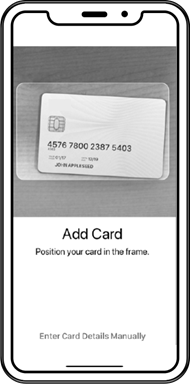 |
| green and yellow paths | 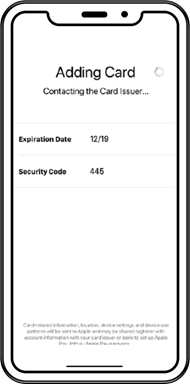 |
| green and yellow paths | 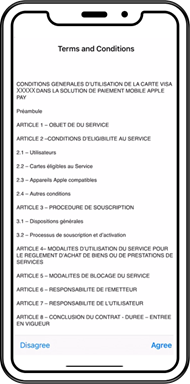 |
| yellow path only | 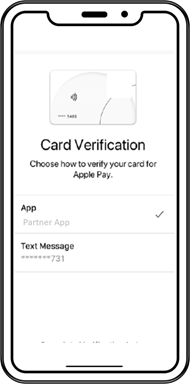 |
| yellow path only | 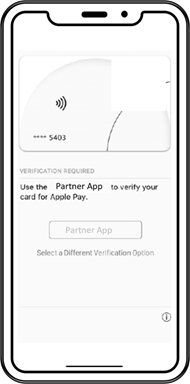 |
| yellow path only | 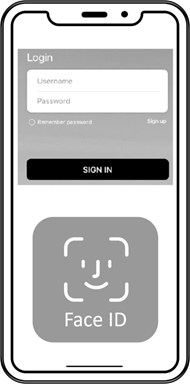 |
| yellow path only | 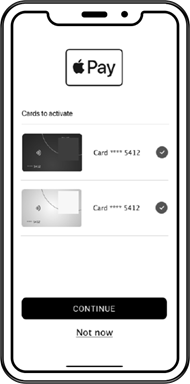 |
| yellow path only | 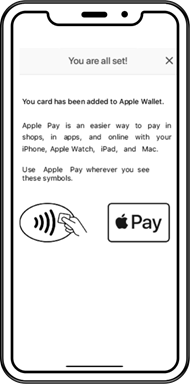 |
| green and yellow paths | 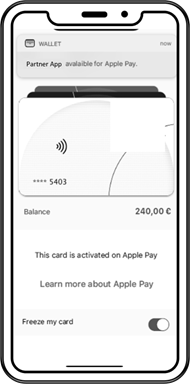 |
Step 4 must include in-app and OTP SMS (only applicable if partner wants to allow for Mac Book enrollment.In this case, Partner must integrate webhook 26 and must implement an SMS server).
Sequence diagram (green path)
sequenceDiagram
autoNumber
    Actor Enduser
    participant Xpay Provider
    participant Xpollens
    participant Partner (Back end)
    participant Partner (App)

    Enduser -->> Xpay Provider: camera scan or manual input of card details <br/> (number, expiry date, CVV)
    Xpay Provider -->> Xpollens: Provisionning <br /> (does no impact end-user balances)
    Xpollens -->> Partner (Back end): Webhook Type 25 (status Active)
Sequence diagram (yellow path)
sequenceDiagram

autonumber

    Actor Enduser

    participant X-Pay provider

    participant Xpollens

    participant Partner(back-end)

    participant Partner(App)

    participant SCA_Provider


    Enduser ->> X-Pay provider: camera scan or manual input of card details<br/> (number, expiry date, CVV)

    X-Pay provider ->> Xpollens: Provisioning<br/> (does not impact end-user balances)


    Xpollens ->> Partner(back-end): Webhook Type 25 (status Inactive)

    X-Pay provider ->> Partner(App): App opening

    Partner(App) ->> Enduser: App connection


    Partner(back-end) ->> Xpollens: Get all tokens by card<br/>Checks if there are inactive tokens to verify

    Xpollens ->> Partner(back-end): Tokens status

    Partner(back-end) ->> Partner(App): Send card to activate

    Partner(App) ->> Enduser: Display card to activate

    Enduser ->> Partner(App): Choice of card to activate

    Partner(App) ->> SCA_Provider: Strong authentication notification

    SCA_Provider ->> Enduser: Strong authentication notification

    Enduser ->> SCA_Provider: SCA validated

    SCA_Provider ->> Partner(back-end): offline_authentication_token


    Partner(back-end) ->> Xpollens: In-App Verification Activation<br/>POST /api/sca/normal/v2.0/{{appUserId}}/token/xpayInAppVerifActivation/{{cardExternalRef}}<br/>with offline_authentication_token

    Xpollens -->> Xpollens: Business checks


    alt Business check KO

        Xpollens -->> Partner(back-end): HTTP 403<br/>Error: "The token does not meet the requirements for activation. The card is not in the right status or is blocked."

    else Business check OK

        Xpollens -->> Partner(back-end): HTTP 200, actionCode 00

    end


    Partner(back-end) -->> Partner(App): Card successfully added to X-Pay provider

    X-Pay provider ->> Xpollens: Provisioning<br/> (does not impact end-user balances)

    Xpollens ->> Partner(back-end): Webhook Type 25 (status Active)
In-App Verification Activation
This endpoint is useful only for Yellow flow. It must be called by the partner back end only if the user is strongly authenticated and approves the process.
POST /api/sca/normal/v2.0/{{appUserId}}/token/xpayInAppVerifActivation/{{cardExternalRef}}
Header
| Field | Format | Required(Y/C/O) | Settings | Description |
|---|---|---|---|---|
| offline_authentication_token | string | Y | header | The proof of authentication (or JWS) should be transmitted in the header of the request and described as follows: Key = offline_authentication_token Value = authentication proof |
| secure_display_certificate | string | C – for iOS only | header | Certificate obtained by prior call to the Antelop SDK |
Request Body:
{
"tokenReferenceID": "string",
"tokenRequestorID": "string"
}
Read more about In-App Verification Activation here:
🔗 API Reference - Cards - Xpay
Token status diagram
stateDiagram
    [*] --> INACTIVE : token created

    INACTIVE --> ACTIVATED: token activated
    INACTIVE --> DELETED
    ACTIVATED --> DELETED : permanently deactivated
    ACTIVATED --> SUSPENDED : temporarily suspended
    SUSPENDED --> ACTIVATED

    DELETED --> [*]
    SUSPENDED --> [*]
The token status changes to SUSPENDED if:
- the card is temporarily blocked
The token status changes to DELETED if:
- the card is deleted from the wallet
- the card is opposed
General rules
A card can be added to the wallet as soon as its status is ACTIVATED.
If a token is not activated within 30 days of its creation, its status changes to DELETED.
During provisioning, VISA creates an authorization on the associated card. This authorization does not impact the user's balance and is not visible to either you or the end user.
In case of multiple tokens to activate, we recommend differentiating them by:
- Displaying the type of device used for enrollment
- Displaying the enrollment date.
Note that our endpoint does not return this value. If needed, you have to integrate it when receiving the callback 25 with status "INACTIVE".
Apple pay in app verif
For Apple pay, the information needed by Xpollens are:
- the mobile banking app id, which is the team id + the bundle id
- the deeplink which redirect the enduser to the process in app verification (in your app)
Samsung & Google pay in app verif
For Samsung and Google pay, the information needed by Xpollens is the app bundleId.
Then the following actions have to be taken into account:
- create the activity a2a in your app: this method must be named Package Name.a2a
- use this activity to redirect the enduser to the in app verif process
- redirect the enduser to the wallet
Find more details in these websites:
🔗https://developer.samsung.com/pay/ID&V/implementing-app2app-id&v.html
🔗https://developers.google.com/pay/issuers/tsp-integration/app-to-app-idv
How to test
The Xpay can not be tested in sandbox.
As a consequence, first tokenisation are processed in production, on whitelisted PANs.
Updated 24 days ago